The most common reason birthday automation fails is missing or inconsistent contact data. Here’s how to add birthdays properly so your iPhone Shortcut can find them every time.
Steps
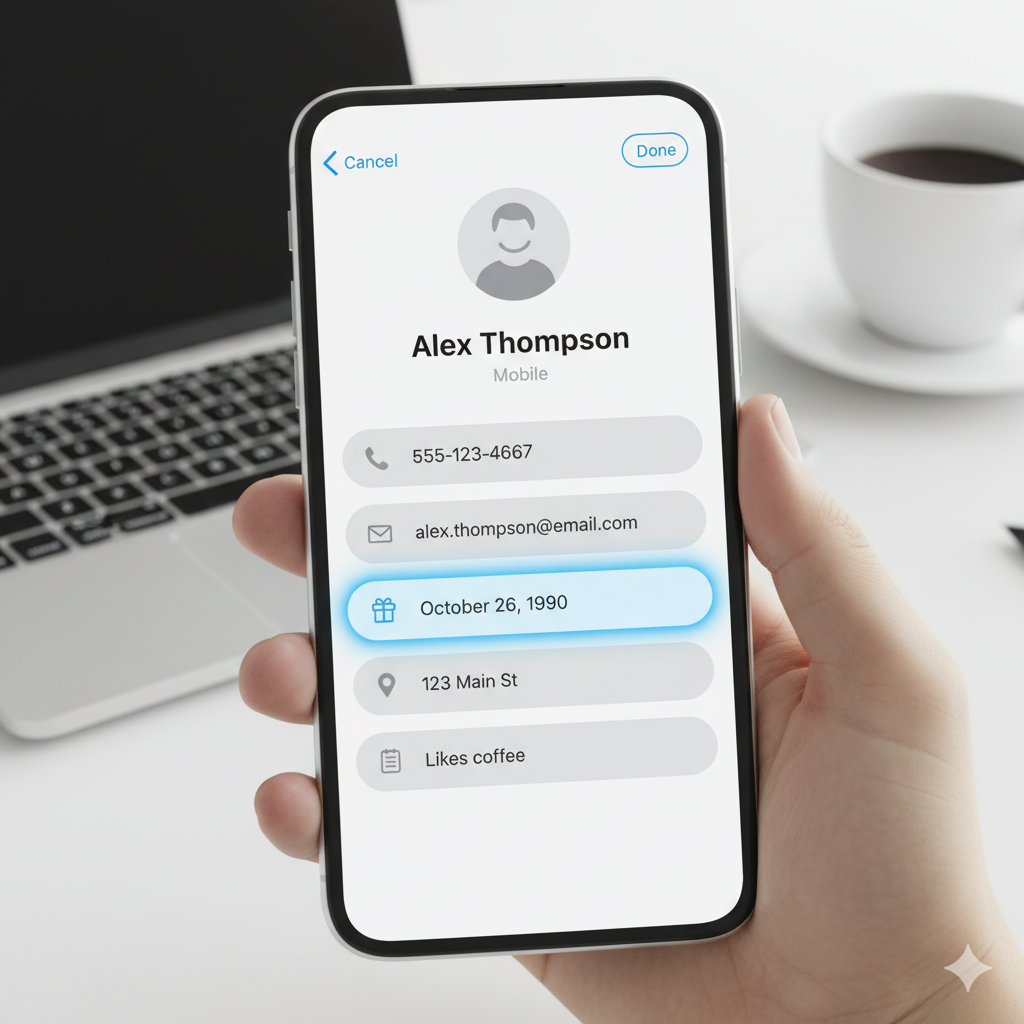
- Open Contacts → pick a contact → Edit.
- Tap add birthday and select the date.
- Use the correct phone number for your messaging channel.
Show birthdays in Calendar
Open the Calendar app → tap Calendars → make sure the Birthdays calendar is checked so all saved birthdays appear on your iPhone calendar.
Keep contact names accurate and avoid duplicates. With clean data, the Birthday Shortcut can do its job flawlessly.